
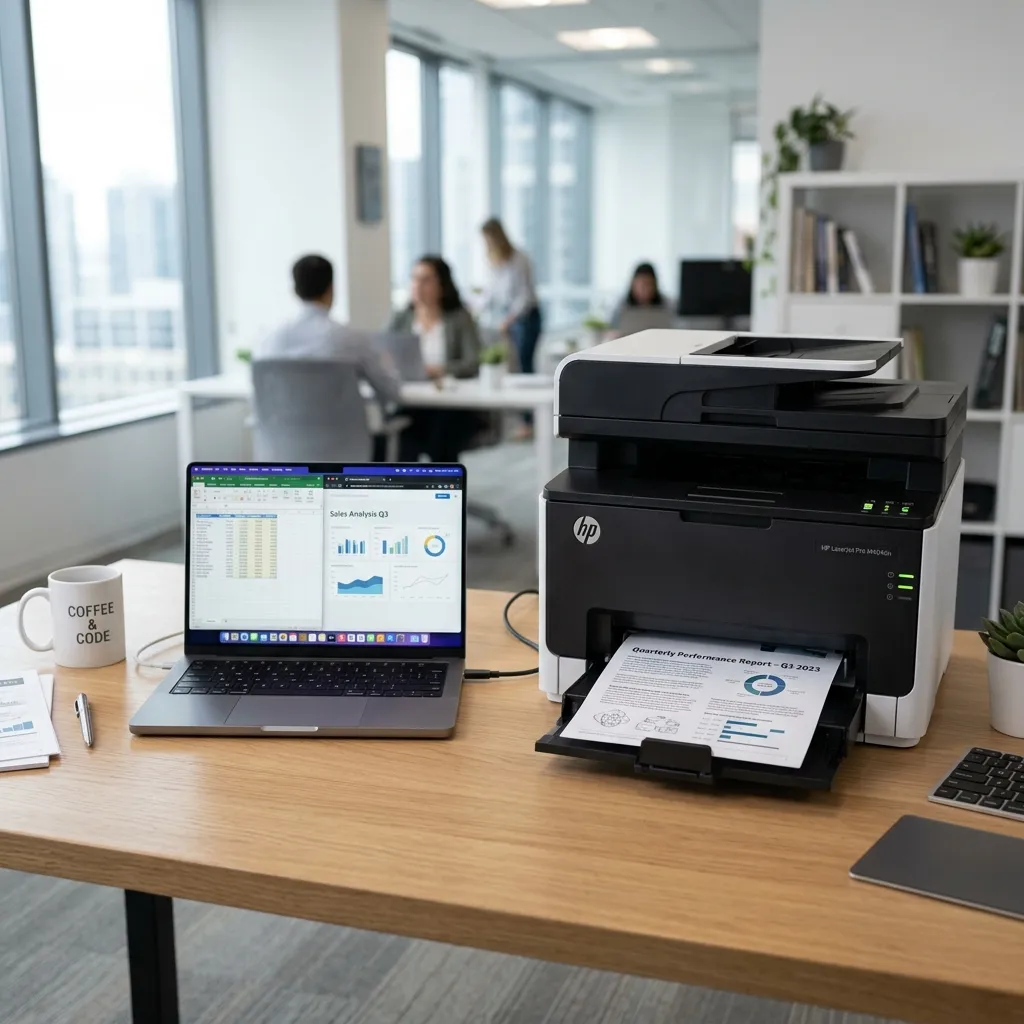
Despite advances in technology, printers remain one of the most temperamental peripherals in the office. If your printer is offline, stuck in the spooler, or printing gibberish, follow these steps.
Clear the Print Spooler
If a document gets stuck in the queue, it can block all subsequent print jobs. Open the Services app in Windows, find the 'Print Spooler' service, stop it, clear the queue folder, and restart the service.
Update the Printer Driver
Printer drivers dictate how the computer translates the document into a format the printer understands. A corrupted driver will cause the printer to print strange characters or refuse to print entirely. Always ensure you have the latest driver installed for your specific printer model.